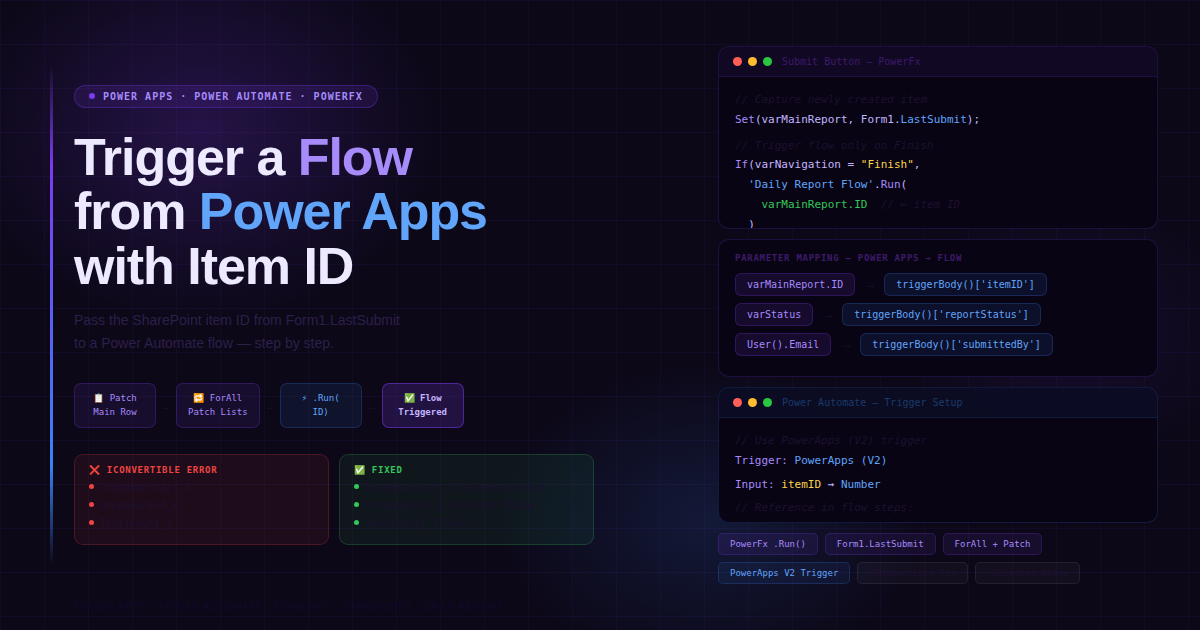
How to Trigger a Power Automate Flow from Power Apps and Pass the Item ID as a Parameter
The Problem
You have a Power Apps form that creates a Daily Report item in SharePoint. On the submit button, you want to:
- Patch the main report record (with signatures, status, form number)
- Save related records (Personnel, Subbies/Contractors, Equipment)
- Trigger a Power Automate cloud flow — passing the newly created item ID as a parameter
The tricky part is that the item ID only exists after Form1.LastSubmit, and the flow must receive it cleanly without breaking the rest of your patch logic.
Step 1 — Set Up the Power Automate Flow Trigger
Before touching Power Apps, configure your flow correctly to accept parameters.
In Power Automate:
- Create a new Cloud Flow
- Set the trigger to PowerApps (V2) — not the old V1 trigger
- Add an input parameter:
| Field | Value |
|---|---|
| Name | itemID |
| Type | Number (or Text if your ID is text) |
Then reference it anywhere in your flow steps using:
triggerBody()['itemID']
⚠️ Always use PowerApps (V2) trigger — it supports typed parameters. The V1 trigger does not and will cause issues passing structured data.
Step 2 — Add the Flow to Your Power Apps Canvas
- Open your Power Apps canvas app
- Click the Power Automate icon in the left sidebar
- Click Add flow and select your flow from the list
- The flow name will appear in your formula bar as something like
'Daily Report Submission Flow'
Step 3 — The Complete Submit Button Formula
Here is the full working PowerFx code for your submit button, with the flow call integrated correctly:
// 1. Capture the Master Record into a variable to use its ID
Set(varMainReport, Form1.LastSubmit);

// 2. Patch the Main Report with Status and Signatures
Patch(
    'Daily Report',
    varMainReport,
    {
        'Report Form No': Text(varMainReport.ID, "000000"),
        Sign: PenInput1.Image,
        Sign2: PenInput2.Image,
        'Approver Name': Approver_Signature.Value,
        'IRS Site Supervisor''s Name': Supervisor_Signature.Value,
        ReportStatus: {Value: varStatus}
    }
);

// 3. Save Personnel List (Updates existing if found, otherwise creates new)
ForAll(
    Gallery1.AllItems,
    Patch(
        'Personnel List',
        If(
            IsBlank(LookUp('Personnel List', UniqueID = varMainReport.ID && Title = Label1.Text)),
            Defaults('Personnel List'),
            LookUp('Personnel List', UniqueID = varMainReport.ID && Title = Label1.Text)
        ),
        {
            Title: Label1.Text,
            'Start Time': DropdownStart_1.Selected.Value,
            'End Time': DropdownEnd_1.Selected.Value,
            UniqueID: varMainReport.ID,
            Lunch: Lunchdrp_1.Selected.Value,
            Total: TextInput1_6.Text
        }
    )
);

// 4. Save Subbies/Contractor List (Duplicate Prevention included)
ForAll(
    Gallery1_1.AllItems,
    Patch(
        'Subbies/Contractor List',
        If(
            IsBlank(LookUp('Subbies/Contractor List', ReportID = varMainReport.ID && Title = Label1_1.Text)),
            Defaults('Subbies/Contractor List'),
            LookUp('Subbies/Contractor List', ReportID = varMainReport.ID && Title = Label1_1.Text)
        ),
        {
            Title: Label1_1.Text,
            'Total Hours': TextInput1_5.Text,
            ReportID: varMainReport.ID
        }
    )
);

// ✅ 5. Trigger Power Automate Flow — only on final submission, not draft saves
If(
    varNavigation = "Finish",
    'Daily Report Submission Flow'.Run(
        varMainReport.ID    // ← The SharePoint item ID passed as parameter 1
    )
);

// 6. Smart Navigation
If(
    varNavigation = "Next",
    EditForm(Form1);
    Navigate('Personnel'),

    varNavigation = "Finish",
    Notify("Saved Successfully!", NotificationType.Success, 3000);
    Reset(ComboBox1);
    Clear(ColTextInput);
    Reset(TextInput2);
    Clear(ColTextInput2);
    Navigate('Home Screen')
)
How .Run() Maps to Flow Parameters
The order of arguments in .Run() must match the order of parameters defined in your flow trigger:
// Single parameter
'YourFlowName'.Run(
    varMainReport.ID            // parameter 1 → itemID
)

// Multiple parameters
'YourFlowName'.Run(
    varMainReport.ID,           // parameter 1 → itemID
    varStatus,                  // parameter 2 → reportStatus
    User().Email                // parameter 3 → submittedBy
)
The flow is wrapped in
If(varNavigation = "Finish", ...)so it only fires on final submission — not on "Next" draft saves. This prevents the flow from running prematurely.
Common Bug: "Object must implement IConvertible"
This error appears when you pass a control reference to Patch instead of the control's value. Power Apps cannot convert the control object into a data type SharePoint understands.
The Broken Code
ForAll(
    Gallery1_3.AllItems,
    Patch(
        'Equipment List',
        ...,
        {
            Title: Label1_1.Text,
            'Start Time': DropdownStart_3,        // ❌ control object, not value
            'End Time': DropdownEnd_3,            // ❌ control object, not value
            'Total hours': TextInput1_3,          // ❌ control object, not text
            ReportID: varMainReport.ID
        }
    )
);
The Fixed Code
ForAll(
    Gallery1_3.AllItems,
    Patch(
        'Equipment List',
        If(
            IsBlank(LookUp('Equipment List', ReportID = varMainReport.ID && Title = Label1_1.Text)),
            Defaults('Equipment List'),
            LookUp('Equipment List', ReportID = varMainReport.ID && Title = Label1_1.Text)
        ),
        {
            Title: Label1_1.Text,
            'Start Time': DropdownStart_3.Selected.Value,  // ✅ .Selected.Value
            'End Time': DropdownEnd_3.Selected.Value,      // ✅ .Selected.Value
            'Total hours': TextInput1_3.Text,              // ✅ .Text
            ReportID: varMainReport.ID
        }
    )
);

Notify("Equipment Draft Saved!", NotificationType.Success);
What Was Wrong — At a Glance
| Field | Before (broken) | After (fixed) | Why |
|---|---|---|---|
| Start Time | DropdownStart_3 |
DropdownStart_3.Selected.Value |
Was passing the whole control object |
| End Time | DropdownEnd_3 |
DropdownEnd_3.Selected.Value |
Same issue |
| Total hours | TextInput1_3 |
TextInput1_3.Text |
Was passing control, not its text value |
| LookUp Title | Label1.Text |
Label1_1.Text |
Copy-paste mismatch — must match gallery label |
The LookUp Label Mismatch Bug
This one is easy to miss. If your LookUp condition uses a different label than your Patch title, duplicate records get created instead of updating existing ones.
// ❌ Wrong — LookUp uses Label1 but Patch uses Label1_1
LookUp('Equipment List', ReportID = varMainReport.ID && Title = Label1.Text)
{ Title: Label1_1.Text, ... }

// ✅ Correct — both use Label1_1
LookUp('Equipment List', ReportID = varMainReport.ID && Title = Label1_1.Text)
{ Title: Label1_1.Text, ... }
Always make sure the label reference in LookUp and the Title field in your Patch record are identical.
Key Checklist Before Going Live
- Flow trigger is PowerApps (V2) — not V1
- Input parameter named
itemIDis defined in the flow trigger - Flow is added to the app via the Power Automate panel (left sidebar)
-
.Run()is called after allPatchoperations complete -
.Run()is wrapped inIf(varNavigation = "Finish", ...)to prevent draft triggers - All dropdown fields use
.Selected.Value— not the bare control name - All text inputs use
.Text— not the bare control name -
LookUplabel references matchPatchtitle references exactly
Key Takeaways
- Use
Form1.LastSubmitto capture the newly created item and access its.ID - Pass the item ID to Power Automate using
'FlowName'.Run(varMainReport.ID) - Always use PowerApps (V2) trigger in your flow to support typed parameters
- The "Object must implement IConvertible" error always means a control is being passed instead of its value — add
.Selected.Valueor.Text - Wrap your flow trigger in
If(varNavigation = "Finish", ...)so it only fires on final submission - LookUp label references and Patch title references must always be identical to prevent duplicate records
Related Topics
- PowerFx Patch function — complete reference
- Power Automate PowerApps (V2) trigger — typed parameters
- ForAll with Patch — upsert pattern in Power Apps
- SharePoint item ID in Power Apps forms
- Debugging IConvertible errors in Power Apps
Working on a more complex multi-table submit pattern? Drop your scenario in the comments.