
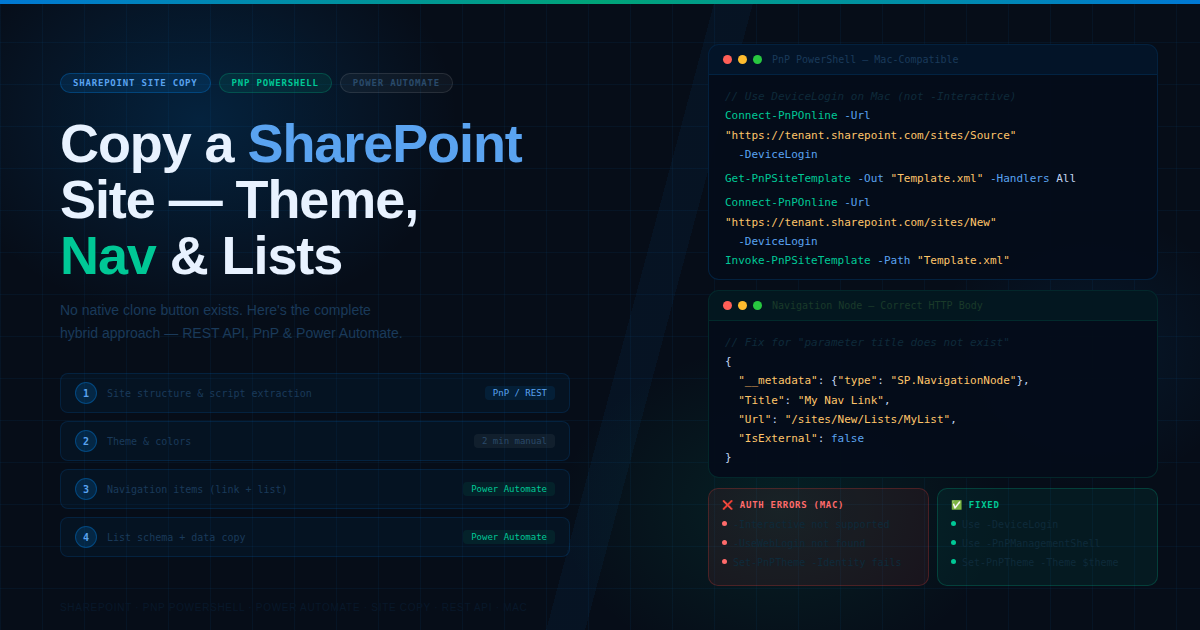
How to Copy a SharePoint Site: Theme, Navigation, Lists & Homepage (Complete Guide)
How to Copy a SharePoint Site: Theme, Navigation, Lists & Homepage (Complete Guide)
Copying a SharePoint site — including its theme, navigation, lists, and homepage — is a common need when setting up a new project site based on an existing template. This complete guide walks you through each component step by step.
Why Copy a SharePoint Site?
Copying a site setup helps you:
- Maintain consistent branding across multiple sites
- Save time by reusing navigation structures and list configurations
- Roll out standardized templates across departments or teams
- Quickly replicate a working site for a new project
1. Copying the Site Theme
Go to your source SharePoint site and open Settings (gear icon) > Site Information > Change the look. Note the theme name, colors, and any custom elements (header layout, navigation style, font). On the new site, go to the same Change the look menu and either select the same built-in theme or recreate the custom theme using the same color values. For custom themes, PnP PowerShell can export and apply themes programmatically using Get-PnPTheme on the source site and Set-PnPTheme on the target site.
2. Copying Navigation
Go to Settings > Site Navigation on the source site and note down all menu items, links, and their hierarchy. On the new site, go to Site Navigation and manually add the same links and structure. For larger navigation structures, use Get-PnPNavigationNode to retrieve items from the source site and Add-PnPNavigationNode to recreate them on the target site, saving time for complex menus.
3. Copying Lists
On the source site, go to the list and save it as a template, or use PnP PowerShell for modern sites with Get-PnPList and Get-PnPField to export the list schema and column structure. Create a new list on the target site and add the same columns, column types, and validation settings. If you also need the actual data (not just structure), use PnP PowerShell's Get-PnPListItem and Add-PnPListItem cmdlets to copy items across.
4. Copying the Homepage
Go to the source site's homepage and click Edit. Record each web part used (News, Quick Links, Document Library, etc.) along with their content and configuration. On the new site's homepage, click Edit, and add the same web parts in the same order, configuring each one to match the source. For exact replication, PnP PowerShell allows exporting the page as a template using Get-PnPClientSidePage and Add-PnPClientSidePage.
Best Practices
Always test the copied site in a non-production environment first. Document the source site's configuration thoroughly before starting, especially custom columns and views. Use PnP PowerShell or PnP Provisioning Templates for repeatable, automated site copying, especially useful when this needs to be done multiple times. Double-check permissions on the new site, as these are not copied automatically and must be set up separately.
Conclusion
Copying a SharePoint site's theme, navigation, lists, and homepage doesn't have to be a tedious manual process. With a structured approach — and PnP PowerShell for the more complex parts — you can replicate a site's setup accurately and efficiently, saving significant time on future projects.